Path of Exile 2 Download, System Requirements, Settings, FPS Boost, Controller & Troubleshooting Guide
Quick take: Path of Exile 2 is built on an overhauled rendering engine that strictly mandates DirectX 12 Feature Level 12_0 hardware support and at least 3 GB of dedicated VRAM. Installing the game on a high-speed SSD is a non-negotiable prerequisite for smooth gameplay: running the client from a mechanical hard drive (HDD) triggers severe asset streaming bottlenecks, infinite loading screens, and game-freezing hitches during combat encounters.
Path of Exile 2 System Requirements: Official Specifications
Unlike the original game, which underwent over a decade of incremental patches and supported legacy graphics APIs, Path of Exile 2 was engineered from the ground up for modern PC hardware. A fully dynamic global illumination model, physical material rendering, simultaneous simulation of hundreds of procedural monster ragdolls, and complex projectile physics place rigorous demands on both your graphics processing unit and system CPU.
To help players evaluate their hardware compatibility, developer Grinding Gear Games published the following official PC system requirements:
| System Component | Minimum Requirements (1080p, Low Settings, 30 FPS) | Recommended Requirements (1080p / 1440p, High, 60+ FPS) |
|---|---|---|
| Operating System | Windows 10 (64-bit, Build 1909 or newer) | Windows 10 / Windows 11 (64-bit) |
| Processor (CPU) | Intel Core i7-7700 or AMD Ryzen 5 2500X (4 cores / 8 threads) | Intel Core i5-10500 or AMD Ryzen 5 3700X (6–8 cores) |
| System Memory (RAM) | 8 GB RAM (Dual-channel configuration required) | 16 GB or 32 GB RAM (DDR4 / DDR5, 3200+ MHz) |
| Graphics Card (GPU) | NVIDIA GeForce GTX 960 (3 GB) / AMD Radeon RX 470 / Intel Arc A380 | NVIDIA GeForce RTX 2060 (6 GB) / AMD Radeon RX 5600 XT / Intel Arc A770 |
| Video Memory (VRAM) | Strict 3 GB VRAM hardware floor | 6 GB – 8 GB VRAM or higher |
| Graphics API | DirectX 12 (with Feature Level 12_0 support) | DirectX 12 or Vulkan |
| Disk Storage | 100 GB available space | 100 GB on a high-speed Solid State Drive (NVMe / SATA SSD) |
For an exhaustive breakdown of 4K ultra-preset benchmarks and mobile chip requirements, check our portal's dedicated database covering official Path of Exile 2 system requirements and hardware evaluations.
Hardware Bottleneck Breakdown: Why the Game Stutters on Older Systems
Raw specification tables do not always reveal how an ARPG engine behaves during dense combat. In practice, players running hardware that theoretically exceeds the minimum bar frequently encounter frame drops and micro-stuttering. Understanding how PoE2 utilizes each hardware layer reveals why legacy systems struggle.
In older engine iterations, game assets were packaged into monolithic archive containers that created substantial disk read queues. Path of Exile 2 utilizes dynamic modular asset streaming (Asset Streaming). When your character enters a new biome or opens a portal to a boss arena, the engine streams textures, sound effects, and enemy models directly from storage on demand rather than loading everything into memory upfront.
- Mechanical HDD performance: Sequential read speeds on an HDD rarely surpass 120–150 MB/s, while random access times sit at 10–15 milliseconds. When an elite pack of rare monsters with custom visual auras spawns on screen, the game thread halts for 2–5 seconds waiting for the mechanical drive arm to retrieve asset data, resulting in fatal lockups;
- Solid State Drive (SSD) performance: Sub-millisecond random access times on SATA or NVMe SSDs allow the background thread to fetch shader bytecode and sound files instantaneously without stalling the main render thread.
Grinding Gear Games enforced a hard hardware boundary: graphics cards with less than 3 GB of VRAM are unsupported. This limit stems from high-resolution texture atlases and render target buffers:
- If your GPU possesses only 3–4 GB of VRAM (such as legacy GTX 1060 3GB or RX 570 4GB cards), running high texture presets causes VRAM overflow. The graphics driver offloads memory buffers into system RAM (Shared GPU Memory) over the PCIe bus, slashing bandwidth and causing frame rates to collapse from 60 to 12–15 FPS in particle-heavy maps;
- Hardware-level support for DirectX 12 Feature Level 12_0 is mandatory. Legacy DirectX 11 cards (such as the GeForce GTX 600/700 series lacking FL 12_0) cannot initialize the rendering pipeline and will crash immediately upon launching the executable.
Path of Exile 2 is intensely CPU-bound. Unlike narrative single-player titles where the GPU performs almost all heavy lifting, an isometric ARPG continuously computes:
- Trajectory calculations and hitbox collisions for hundreds of overlapping skill projectiles and boss attacks;
- Procedural ragdoll physics, fluid dynamics, and environmental destruction;
- Real-time mixing of up to 128 positional audio voice streams.
To avoid frame pacing hiccups, a modern processor with at least 6 physical cores and AVX2 instruction support is required. Outdated 4-core CPUs without simultaneous multithreading will max out at 100% utilization, creating a severe bottleneck (CPU Bottleneck) even when paired with an enthusiast-grade RTX 4070.
Quick take: Path of Exile 2 is available on PC via the official Grinding Gear Games Standalone Client, Steam, and the Epic Games Store, as well as on PlayStation 5 and Xbox Series X/S consoles. The game features full cross-platform play and cross-progression through a centralized Path of Exile account. However, microtransactions and purchased stash tabs on PlayStation are locked within Sony's ecosystem due to platform store policies.
Where to Download Path of Exile 2: Platform Comparison
PC players can choose between two primary distribution channels: the official Grinding Gear Games Standalone Client and the Steam edition. Selecting the right client depends on whether you prioritize patch stability during high-load launch events or prefer unified library management and friends list integration.
| Platform / Client | Key Advantages | Limitations & Trade-offs | Recommended For |
|---|---|---|---|
| Official Standalone Client |
| Requires separate login credentials and direct web checkout for in-game currency. | Players seeking maximum uptime who want to avoid third-party launcher dependencies. |
| Steam Client |
| Weekly Steam Tuesday maintenance can abruptly disconnect you during active map runs. | General Steam users and portable gaming setups like the Steam Deck. |
| Epic Games Store (EGS) | Alternative digital storefront supporting regional payment gateways. | Fewer launch customization parameters compared to Steam. | Players actively utilizing the Epic Games launcher ecosystem. |
| Consoles (PS5 & Xbox Series X/S) | Tailored TV interface, haptic controller feedback, and local couch co-op support (Couch Co-op). | Requires an active PSN or Xbox Network profile; platform-locked MTX on PlayStation. | Console players and living-room cooperative ARPG sessions. |
For more detailed breakdowns on game mechanics, build guides, and technical configurations, explore the central hub of Path of Exile 2 guides on MMO Chronicles.
Step-by-Step Installation on PC and Consoles
- Navigate to the official portal at
pathofexile.comand sign in with your main account credentials; - Open the download section and retrieve the official setup file:
PathOfExile2Installer.exe; - Run the installer as an administrator and ensure the installation directory targets a high-speed SSD (e.g.,
C:\Games\Path of Exile 2\); - Confirm that you have at least 100 GB of free space before the client begins downloading content archives;
- Once verification completes, click Play and select your nearest regional gateway from the login dropdown menu.
- Launch the Steam client and search for Path of Exile 2 in the Store catalog;
- Add the game to your library (or activate your early access product key via "Games" → "Activate a Product on Steam");
- Click "Install" and select a dedicated SSD volume formatted in NTFS;
- Allow Steam to finish downloading and allocating disc storage blocks;
- During first launch, Steam will automatically verify dependencies, including DirectX End-User Runtimes and Visual C++ Redistributable 2015–2022 packages.
- Power on your console and open the PlayStation Store or Microsoft Store;
- Type "Path of Exile 2" in the search bar and select the game listing or acquired supporter pack tier;
- Click "Download" — the console package requires roughly 85–95 GB of internal SSD storage;
- Launch the game from your primary dashboard once the installation finishes.
Crossplay and Cross-Progression: Account Linking Guide
Path of Exile 2 connects all players across an identical global server infrastructure regardless of platform. You can clear endgame Waystones on PC alongside friends playing on PlayStation 5 or Xbox Series X. However, to access the same characters across multiple devices, your accounts must be linked under a single primary GGG profile.
To access your existing characters and progress across both PC and console setups:
- Log into your account dashboard on the official website at
pathofexile.com; - Click your account name in the upper-right corner and select "Manage Account";
- Open the "Connections" tab located in the navigation sidebar;
- Locate the target service icon (Steam, Sony PlayStation Network, or Microsoft Xbox Live) and click "Connect";
- Authenticate your third-party credentials on the redirected authorization page. Your characters, passive skill tree allocations, and quest milestones will now synchronize automatically upon login.
While character levels and raw items move freely across platforms, paid store microtransactions adhere to platform-specific storefront rules:
- PC and Xbox Series X/S Ecosystem: Purchased premium stash tabs (Currency Tab, Map Tab, Quad Tab) and cosmetic armor sets synchronize bidirectionally between PC and Xbox platforms;
- PlayStation Ecosystem Limits: Under Sony platform guidelines, microtransactions, supporter pack perks, in-game points, and specialized stash tabs purchased on the PlayStation Store remain strictly locked to the PS5 console. Items purchased on PC cannot be accessed on PlayStation, and vice versa. However, base character progress and equipped in-game loot transfer freely without restriction.
Quick take: Path of Exile 2 includes full official Russian text localization provided directly by Grinding Gear Games, covering all narrative dialogues, UI menus, passive trees, and item mod descriptions. No third-party language packs or community patchers are needed or permitted. Spoken audio and NPC voice acting remain in English globally across all international versions as an established studio standard.
Official Localization in Path of Exile 2: Language Support Overview
Players frequently inquire about international language options and whether third-party translation mods are required. In the early days of the original game, CIS distribution was managed by external publishing partners. Today, Grinding Gear Games maintains its own dedicated in-house localization and quality assurance teams.
In Path of Exile 2, multiple languages—including Russian, German, French, Spanish, Portuguese, Thai, Korean, and Simplified Chinese—are officially integrated into the core game build across PC, Steam, PlayStation 5, and Xbox Series X/S. Content updates, balance patches, skill gem overhauls, and narrative chapters receive verified translations simultaneously on patch release day.
| Game Element | Localization Status | Technical Scope & Details |
|---|---|---|
| Interface & Menus | Fully localized | All system options, item hover tooltips, stash filter search tags, and hotkey binding overlays. |
| Skill Gems & Passive Tree | Fully localized | Precise numerical values, trigger mechanics, metamagic support tags, and Atlas passive nodes. |
| Quest Log & Story Dialogue | Subtitles & text localized | Town NPC conversations, quest journal entries, lore inscriptions, and world interactable objects. |
| Spoken Audio (Voice-Over) | Original English only | Character lines, bosses, and lore recordings feature full English voice acting across all global builds. |
| Official Trade Website | Multi-language search | The official web trade engine supports cross-language item querying and instant affix translation. |
How to Change Language Settings Across Different Platforms
Switching your client language requires no Windows registry modifications or custom file renaming. The toggle is natively accessible within client menus:
- Open the Path of Exile 2 standalone launcher executable;
- Before typing your login credentials, locate the national flag selector in the top-right corner of the launcher frame;
- Click your preferred regional flag (such as the Russian Federation flag for Russian text) to immediately convert the interface;
- If you are already in-game, open Options → UI tab → "Language" dropdown menu, select your preferred language, and let the game perform a quick interface reload.
- Launch Steam and navigate to your "Library" tab;
- Right-click on Path of Exile 2 in the left sidebar and choose "Properties...";
- Navigate to the "General" section in the configuration window;
- Locate the "Language" dropdown selector and choose your desired language (e.g., "Russian");
- Steam will download a small language asset package (typically 15–30 MB), after which the client launches with localized text.
Console versions inherit language parameters directly from your console system firmware settings:
- If your console dashboard language is set to Russian, the game automatically boots with Russian text enabled;
- To manually override this without changing your entire console interface, open the in-game "Options" menu from the character select screen and change the language in the primary settings category.
Spoken Audio Policy: Why Voice Acting Remains in English
Questions regarding full voice acting dubs in non-English languages arise regularly. Grinding Gear Games maintains a deliberate studio policy: all spoken character lines and narrative performances are recorded exclusively in English using professional voice talent from New Zealand, the United Kingdom, and Australia.
The total volume of recorded audio across Path of Exile 2 is staggering: twelve character classes have unique voiced reactions to specific environments, unique bosses, dropped relics, and shifting story beats throughout all campaign acts. Re-recording this expansive voice library into a dozen languages for every quarterly expansion would strain release schedules. Consequently, English remains the global spoken standard, paired with comprehensive localized subtitles.
Unverified community forums often distribute third-party "AI voice dub packs" or "extended localization patches." Installing these files exposes your system and game account to extreme risks:
- Permanent Anti-Cheat Account Bans: Path of Exile 2 uses rigorous file integrity validation. Modifying packaged archive files (
.ggpk) or injecting DLL libraries into the game folder triggers automatic security flags, resulting in immediate permanent account termination without appeal; - Malware and Session Hijacking: Rogue patch installers frequently package Trojan droppers, crypto-drainers, and Steam session credential stealers designed to harvest high-value currency tabs and linked credit cards;
- Client Corruption and Infinite Loading: Custom font and text files break compatibility whenever GGG pushes a minor server hotfix, causing fatal startup crashes and corrupted textures.
Quick take: Achieving consistent framerates in Path of Exile 2 requires selecting the optimal graphics renderer and fine-tuning lighting bottlenecks. DirectX 12 delivers the highest average FPS on modern discrete GPUs, whereas Vulkan eliminates shader compilation stutter on mid-range hardware and laptops. Lowering Global Illumination, disabling Motion Blur, and reducing Sound Channels to Medium or Low can reclaim 35–45% of system CPU and GPU overhead.
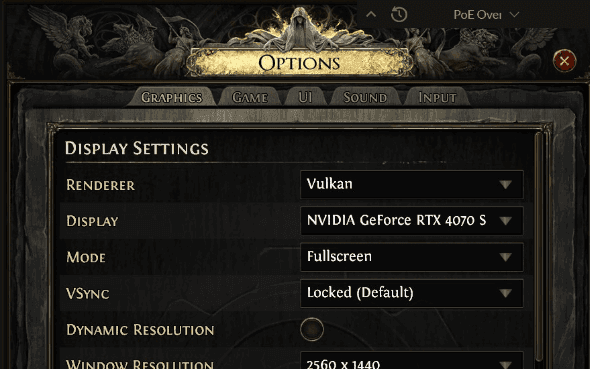
Renderer Showdown: DirectX 12 vs. Vulkan
Path of Exile 2 offers two modern low-level graphics application programming interfaces: DirectX 12 and Vulkan. Unlike deprecated DirectX 11 backends, both modern APIs bypass driver-level translation layers to directly interface with your GPU. However, their internal memory scheduling and pipeline compilation architectures handle heavy particle bursts differently.
| Evaluation Metric | DirectX 12 (D3D12) Renderer | Vulkan Renderer |
|---|---|---|
| Peak Framerate (Maximum Average FPS) | Extremely high on modern NVIDIA GeForce RTX 3000/4000 and AMD Radeon RX 6000/7000 cards. | Typically 5–10% lower peak FPS compared to DX12, but produces a remarkably stable 1% low frame pacing curve. |
| Frame Pacing & Micro-Stutters | Can produce momentary hitches when compiling brand-new spell effect shaders during the first seconds of a map. | Superior stutter mitigation; asynchronous shader compilation handles asset pop-in much more smoothly. |
| Driver Crash Stability | Prone to [D3D12] Device Removed errors during intense maps if VRAM overfills or shader caches corrupt. | Highly resilient against memory leaks during extended multi-hour play sessions without triggering driver resets. |
| Hardware Recommendation | Enthusiast systems with 8+ GB VRAM and modern multi-core processors. | Mid-range cards (GTX 1060–1080, RX 580/5500), gaming laptops, and the Steam Deck. |
Begin benchmarking with the default option: DirectX 12. If your gameplay remains smooth without sudden frame time spikes when encountering dense monster packs, remain on DX12. If you experience random split-second hitches during rapid combat encounters or encounter direct driver timeouts, switch your in-game renderer to Vulkan and restart the client.
Optimal Graphics Configuration Table for High Framerates
The following balanced settings matrix trims high-overhead cosmetic features while preserving essential visual clarity, ground effect boundaries, and crisp character armor details:
| Graphics Setting | Recommended Target | Performance Gain | Technical Rationale |
|---|---|---|---|
| Display Mode | Borderless Windowed | Neutral | Enables instant alt-tabbing between third-party build trade tools and browsers without resetting resolution state. |
| Lighting (Global Illumination) | Shadows + Default Lighting | +15–20% FPS | Full dynamic multiple-bounce ray calculation severely bogs down GPU compute units in dark subterranean environments. |
| Shadow Quality | Low or Medium | +8–12% FPS | Reduces shadow map resolution cast by dozens of concurrent player spells and wall torches without muddying scenes. |
| Texture Quality | High (6+ GB VRAM) / Medium (3–4 GB) | VRAM-dependent | Directly impacts surface sharpness; only lower this if you face physical video memory shortages and PCIe thrashing. |
| Anisotropic Filtering | 8x or 16x | 1–2% FPS | Virtually zero overhead on modern discrete GPUs while ensuring ground decals remain sharp at oblique camera angles. |
| Water Detail | Low | +5% FPS near water | Simplifies wave tessellation and dynamic planar reflection buffers across swamp and river biomes. |
| Depth of Field | Disabled | +3% FPS | Removes artificial camera blur filters from the background, maximizing tactical visibility across the battlefield. |
| Motion Blur | Disabled | +4% FPS | Eliminates disorienting camera smearing when performing high-speed dodge rolls and directional dashes. |
| Anti-Aliasing | TAA or Native Scaler AA | +2% FPS | Smooths jagged pixel stepping and shimmering on fine ground foliage and fence geometry. |
Resolution Upscaling and Dynamic Resolution Scaling
For displays running at 1440p or 4K resolution, leveraging intelligent upscaling algorithms is the most effective approach to elevating performance without degrading image fidelity.
- NVIDIA DLSS (Deep Learning Super Sampling): Supported on GeForce RTX GPUs. Running in "Quality" mode delivers image reconstruction practically indistinguishable from native 1440p/4K while boosting FPS by 25–40%;
- AMD FSR (FidelityFX Super Resolution): A universal temporal upscaler functional across GPUs from all manufacturers (including legacy GeForce GTX cards). Recommended preset: "Quality";
- Intel XeSS: An excellent cross-hardware alternative that handles fine particle effects and mesh alpha masks with impressive temporal stability.
If your system experiences sharp framerate drops during catastrophic screen-wide spell explosions, enable Dynamic Resolution Scaling:
- Set your Target Framerate to match your monitor's refresh baseline or a steady tier (such as 60 FPS);
- When heavy particle effects threaten to collapse frame delivery, the engine dynamically downscales internal 3D render resolution on the fly, preserving controller responsiveness and preventing stutter;
- As soon as the pack dies and the screen clears, native resolution instantly restores.
Secret CPU Optimization: Sound Channel Count Tuning
One of the most elusive causes of severe frame pacing drops in Grinding Gear Games titles involves audio processing rather than the graphics pipeline. During encounters with massive mob swarms, every projectile impact, status ailment sound effect, elemental shatter, and death rattle triggers an individual audio buffer.
By default, the game configures Sound Channels to High. In this state, your CPU cores must calculate spatial positions and software-mix up to 128 concurrent sound voices simultaneously, causing CPU thread starvation:
- Open the Options menu and navigate to the "Audio" tab;
- Locate the "Sound Channels" dropdown setting;
- Switch the value from High to Medium or Low;
- Apply changes. The auditory difference during chaotic combat is imperceptible to human ears, but CPU thread overhead drops by 10–15%, completely eliminating unexplained micro-hitches during explosive pack clears.
Quick take: In 90% of cases, sudden gameplay freezes and micro-stutters in Path of Exile 2 are caused by network packet loss on Wi-Fi connections under the Lockstep engine mode rather than hardware shortcomings. In Lockstep mode, losing even 1% of network packets forces the game client to completely pause world rendering until the missing server data arrives. Switching your PC or console to a direct wired Ethernet cable resolves these unexplained combat freezes instantly.
The Anatomy of Network Freezes: Why the Game Stalls on Powerful Rigs
Many players encounter a confusing phenomenon: their gaming rig runs an enthusiast-tier RTX 4080 paired with a high-end NVMe SSD, the in-game framerate counter reads a steady 120 FPS, yet every few minutes the character freezes completely in place for 1–2 seconds. A fraction of a second later, the screen violently fast-forwards through missed animations, only to find the character dead surrounded by monsters.
Players instinctively blame graphics drivers or poor PC port optimization. In reality, the root cause lies within the game's networking architecture, which differs fundamentally from typical matchmaking shooters or conventional MMORPGs.
| Networking Mode | Engine Synchronization Protocol | Behavior During Packet Loss or Latency Spikes |
|---|---|---|
| Lockstep Mode (Strict Synchronous) | The local game client strictly synchronizes every frame of simulation with the server. Character movement, spell casts, and monster actions only render after the server transmits an authoritative packet confirmation. | Complete Simulation Freeze. If even a single network packet drops across the wireless radio channel, the local client halts rendering entirely until the retransmitted packet arrives, after which the game rapidly catches up to present time. |
| Predictive Mode (Client-Side Speculative) | The client simulates physics and character movement locally on your machine, sending periodic inputs to the server in the background. The visual screen never freezes during network stalls. | Desynchronization and Rubberbanding. When the client and server positions diverge, your character gets yanked backward into their real server position. In lethal boss arenas, this leads to sudden damage from phantom hits. |
In Path of Exile 2, synchronous Lockstep serves as the authoritative networking standard. While this guarantees frame-perfect accuracy for defensive maneuvers (Dodge Roll) and hit detection, it makes the game exquisitely vulnerable to minor wireless instability.
The Wi-Fi Pitfall: Why Wireless Routers Ruin Your Gameplay
Even enterprise-grade wireless routers running Wi-Fi 6 or Wi-Fi 7 transmit data over shared, unlicensed radio frequency bands. In typical residential environments, wireless signals encounter constant interference:
- Neighboring Network Interference: Surrounding apartment routers frequently broadcast across overlapping channels, generating micro-collisions and packet retransmission requests;
- Household Electromagnetic Noise: Operating microwave ovens, Bluetooth devices, wireless audio transmitters, and dense reinforced concrete walls degrade signal integrity;
- Band Steering Channel Hops: Modern routers often broadcast a unified SSID across both 2.4 GHz and 5 GHz bands. When your PC wireless adapter perceives temporary signal attenuation, it hops between frequency bands. While web browsing or video streaming buffers mask this transition effortlessly, an active PoE2 session experiences a severe socket drop that triggers a hard Lockstep lockup;
- Bufferbloat: When other household devices stream high-definition video or trigger cloud backup syncs, the router's internal packet queue overflows, spiking latency from 25 ms to 400+ ms in split seconds.
If you can run a physical network cable from your router's LAN port to your PC or console, do so immediately. A direct wired Cat 5e / Cat 6 patch cable eliminates electromagnetic radio interference, maintains guaranteed zero packet loss (0% Packet Loss), and creates a flat latency response curve. For the vast majority of players, switching from Wi-Fi to Ethernet permanently fixes unexplained combat freezes.
How to Stabilize Wi-Fi When Ethernet Is Not an Option
If rental restrictions or floor layouts prevent running physical Ethernet cables, apply these strict wireless network isolation steps:
- Access your router's administrative dashboard through a browser (typically located at
192.168.1.1or192.168.0.1); - Navigate to Advanced Wireless Settings;
- Disable automated band merging features (Smart Connect or Band Steering);
- Assign distinct names (SSIDs) to each band, such as
Home_2.4G(for mobile phones and smart devices) andHome_5G_Gaming(strictly reserved for your PC); - Connect your gaming PC exclusively to the 5 GHz band and disable automatic connection for the 2.4 GHz network in Windows settings.
Routers frequently jump across congested default channels. Download a free Wi-Fi analyzer utility on your smartphone to survey neighboring spectrum usage. Manually lock your router to an uncrowded static 5 GHz channel (such as channel 36, 40, 44, or 48) with an 80 MHz channel width to ensure maximum throughput without interference.
Network Diagnostics: In-Game F1 Overlay and Gateway Selection
To pinpoint whether a hitch is caused by GPU rendering drops or network pipeline stalls, utilize the built-in telemetry overlay:
- While inside the game world, press the F1 key on your keyboard to bring up the real-time performance graphs;
- The top graph monitors your frame time (Frame Time) and instantaneous FPS;
- The bottom graph tracks network response time (Latency in milliseconds);
- Diagnostic Rule: If the Latency line spikes vertically into red numbers during a freeze while Frame Time remains calm, your issue is 100% network-related. If Latency remains flat and the Frame Time graph spikes into high millisecond values, your graphics driver or CPU shader compilation is to blame.
| Regional Gateway | Average Latency Profile | Routing Infrastructure & Peering |
|---|---|---|
| Frankfurt (Germany) | 15–35 ms across Central Europe | Primary European data hub offering massive bandwidth capacity and robust continental backbone links. |
| Amsterdam (Netherlands) | 20–40 ms across Western Europe | Exceptional Tier-1 transit connectivity; a reliable alternative during peak evening congestion in Frankfurt. |
| Moscow (Eastern Europe) | 10–30 ms across Eastern Europe / CIS | Direct peering for localized regional players, minimizing intermediate transatlantic transit hops. |
If you are connected via Ethernet but observe constant packet spikes on your F1 overlay, the issue may stem from congested public peering exchanges along your ISP's transit route. Running a network trace using the free WinMTR tool to target the game server IP will isolate which public transit hop is dropping packets. In cases of chronic ISP routing congestion, gaming routing networks like ExitLag or Mudfish can re-route your game packets through private low-latency fiber lines, bypassing troubled public nodes.
Quick take: Path of Exile 2 fundamentally reinvents combat controls by introducing native WASD directional movement with decoupled mouse aiming alongside classic click-to-move and robust native gamepad support. The game works seamlessly across Xbox controllers, DualSense gamepads, and the Steam Deck. On Steam Deck, the notorious "character won't move" glitch is caused by Steam Input community templates erroneously emulating keyboard keys while the in-game input is configured for native controller mode.
Three Control Paradigms in Path of Exile 2
The combat pacing of Path of Exile 2 emphasizes precise positioning, deliberate timing, dodge rolls (Dodge Roll), and dynamic evasion during boss encounters. Rather than forcing all PC players into the singular click-to-move scheme of the original game, the sequel provides three distinct control models.
| Control Scheme | Movement Input | Aiming & Targeting Input | Combat Strengths & Tactical Edge |
|---|---|---|---|
| WASD Movement | Dedicated W, A, S, D keys command an 8-way directional stride vector. | Mouse cursor functions independently to target abilities anywhere on screen. | Elite combat strafing. Allows continuous backward kiting while firing arrows or spells forward into charging enemies without interrupting movement. |
| Classic Click-to-Move | Left mouse button clicks guide your pathing coordinates. | Mouse cursor alternates between character navigation and enemy targeting. | Traditional ARPG control flow familiar to Diablo and PoE 1 veterans, though demanding frequent micro-clicking under pressure. |
| Native Gamepad Controller | Left analog joystick governs character orientation and velocity. | Right joystick and auto-targeting cones govern attack arcs. | Ergonomic comfort for living-room couch play and handheld portable gaming with a dedicated radial console UI. |
To switch to the modern decoupled movement system on PC:
- Press Esc to open the Options menu;
- Navigate to the "Input" tab;
- Under "Movement Type", change the setting from Click to Move to WASD;
- Bind your Dodge Roll action (Dodge Roll) to an accessible key — the Space key is the recommended default;
- Save settings. Your character will now navigate using WASD keys, liberating your left mouse button for primary attacks or utility spells.
Connecting and Mapping Gamepads on PC
Path of Exile 2 features plug-and-play support for all modern gamepads, including the Xbox Wireless Controller, PlayStation DualSense (PS5), DualShock 4, and standard XInput controllers (such as 8BitDo or Razer models).
Connecting a controller dynamically alters the HUD layout:
- The primary hotbar transforms into four core face-button slots (A / B / X / Y on Xbox or ✕ / ○ / □ / △ on PlayStation);
- Holding the right trigger (RT / R2) summons a secondary shift layer containing four additional skill and aura slots;
- Dodge Roll is bound to a shoulder bumper (RB / R1) by default, granting instantaneous evasion out of telegraph danger zones;
- Life and Mana flasks are bound to the directional pad (D-Pad), allowing resource recovery while maintaining left-stick movement.
Configuring Path of Exile 2 on Steam Deck: Fixing the Movement Glitch
While the game performs admirably on the Steam Deck, players frequently run into an immediate roadblock: upon launching the game, their newly created character stands completely immobile and fails to respond to left analog stick inputs.
This issue stems from an input mismatch between Steam Input and the internal game settings:
- Template Mismatch: Community layout profiles often bind the Deck's physical left stick to emulate keyboard keys (W, A, S, D). However, if Path of Exile 2 is set to its native Gamepad mode in options, the engine ignores keyboard scan codes on the movement axis, causing complete character paralysis;
- Disabled Steam Input Overlay: If Steam Input is toggled off for the title, the hardware controls will not pass axis translation into the Proton environment.
- Press the physical STEAM button on your Deck while running Path of Exile 2;
- Navigate to the "Controller Settings" menu;
- Select "Change Layout";
- Open the "Templates" tab at the top and select the official standard Gamepad template provided by Valve / Grinding Gear Games (avoid custom keyboard-emulation presets);
- Return to the game, open Options → Input, and confirm that the active device is set to Gamepad. Your character will now respond to analog stick input with full variable walking velocity.
Optimal Steam Deck Graphics Settings for Stable 45–60 FPS
To achieve a reliable framerate without thermal throttling or draining your battery in under 90 minutes, apply the following SteamOS parameters:
| Steam Deck Setting | Recommended Target | Performance & Battery Impact |
|---|---|---|
| In-Game Graphics Renderer | Vulkan | Ensures seamless compatibility with Proton on SteamOS while eliminating shader compilation hitches. |
| Screen Resolution | 1280x800 (16:10 Native) | Crisp text rendering across dialogue boxes without non-native aspect scaling. |
| Upscaling (FSR) | AMD FSR in "Quality" mode | Reduces workload on the Van Gogh APU while retaining sharp item drop labels. |
| Framerate Limit (SteamOS) | 45 Hz / 45 FPS (or 60 FPS on OLED) | Delivers rock-solid frame pacing with substantial reductions in power consumption. |
| TDP Power Limit (SteamOS) | 11–12 Watts | Restricts fan noise and prevents hardware throttling during extended dungeon delves. |
Quick take: The majority of fatal engine crashes, infinite loading screens, and [D3D12] Device Removed errors in Path of Exile 2 can be resolved by executing a thorough cleanup of corrupted local shader caches and expanding your GPU driver cache ceiling to 10–100 GB. For in-game troubleshooting and desync recovery, built-in console chat commands like F1 for hardware monitoring and /oos for emergency server resynchronization provide instant relief.
Complete Protocol for Clearing the Shader Cache
As you explore the world of Path of Exile 2, the rendering engine compiles and stores thousands of specialized shader programs covering monster models, weather lighting, and spell particle effects. Following major game patches or GPU driver updates, these cached binary files can become corrupted or fall out of alignment with the compiled pipeline state, triggering micro-stutters and sudden desktop crashes.
To perform a complete clean reset of your graphics pipeline, execute this three-step protocol:
- Completely close the Path of Exile 2 game client and launcher;
- Press Win + R, type
%appdata%in the dialog box, and press Enter; - Within the
AppData\Roamingdirectory, locate thePath of Exile 2folder (or check under your user directory atDocuments\My Games\Path of Exile 2\); - Locate and delete the following cache folders:
ShaderCacheD3D12— Cached bytecode for the DirectX 12 renderer;ShaderCacheVulkan— Cached bytecode for the Vulkan renderer;Minimap— Temporary minimap texture cache.
- Upon your next launch, the engine will automatically generate pristine folders and compile fresh, uncorrupted shaders.
- Open the Windows Start menu, type "Disk Cleanup", and run the utility as an administrator;
- Select your primary operating system drive (typically
C:) and click OK; - In the file checklist, uncheck all items except for one: DirectX Shader Cache;
- Click "OK" and confirm file deletion. This purges stale driver-level shader artifacts stored across your Windows operating system.
By default, graphics drivers impose an aggressive limit on shader cache storage (often 1–4 GB). In an expansive ARPG like Path of Exile 2, this buffer rapidly overflows, forcing your GPU to constantly delete older shaders and recompile them mid-combat:
- Right-click your desktop and open the NVIDIA Control Panel;
- Navigate to "Manage 3D Settings" in the left sidebar → "Global Settings" tab;
- Scroll down to find the setting labeled "Shader Cache Size";
- Change the default "Driver Default" value to 10 GB or 100 GB;
- Click "Apply" in the lower-right corner and reboot your PC. The driver will now preserve compiled shaders permanently, dramatically smoothing out map traversal.
Troubleshooting Common Errors and Startup Failures
| Error / Failure Symptom | Probable Root Cause | Verified Solution |
|---|---|---|
[D3D12] Device Removed / DXGI_ERROR_DEVICE_RESET | GPU driver timeout caused by VRAM starvation, aggressive factory overclocks, or transient voltage dips. |
|
| Infinite Loading Screen Between Zones | Client installed on a slow mechanical HDD or corrupted modular texture archive. |
|
| An Unexpected Disconnection Occurred | TCP socket drop between the local client and the instance server, or strict firewall filtering. |
|
| Black Screen on Startup / Immediate Crash | Corrupted video settings file following a monitor swap or unsupported refresh rate state. |
|
Essential In-Game Chat Commands and Hotkeys
Path of Exile 2 preserves a full suite of traditional console chat commands that allow players to monitor system performance, force server resynchronization, and track character milestones. Press Enter to activate chat input and prefix commands with a forward slash:
| Command / Keybind | Official Function | Practical Utility |
|---|---|---|
| F1 | Hardware Telemetry HUD | Displays real-time diagnostic graphs for Frame Time, FPS, Latency (ping), CPU, and GPU load. |
/oos | Out of Sync Manual Resync | Forces an authoritative server resync, resetting character coordinates during movement desynchronization. |
/remaining | Remaining Monster Counter | Outputs the exact count of remaining monsters in the current zone or endgame Waystone (when under 50). |
/passives | Passive Skill Point Audit | Lists all completed story quests that grant passive skill points or bandit rewards, exposing missed quests. |
/played | Character Playtime Tracker | Displays cumulative days, hours, and minutes spent on the current character. |
/deaths | Death Counter | Outputs the total number of character deaths across their leveling lifecycle. |
/clear | Clear Chat Log | Wipes all chat text history, restoring clean screen visibility during intense encounters. |
/afk [message] | Away From Keyboard Status | Toggles away status with an automated response sent to any incoming private whispers. |
/dnd [message] | Do Not Disturb Mode | Completely blocks incoming private messages and trade pings during crucial boss encounters. |
/help | In-Game Command Directory | Prints an official reference index of all supported chat commands in the chat console. |
Frequently Asked Questions (FAQ)
Will characters be wiped after the early access period concludes?
No. Grinding Gear Games confirmed that characters created during early access will not be deleted. At official release, existing early access characters will transition into the permanent Standard league (Early Access Standard), while the 1.0 release introduces a brand-new seasonal league with a fresh economy.
Are macros and third-party overlays ban-worthy?
The classic GGG policy remains strict: any macro that sends exactly one server action per physical keypress (the 1 Server Action per 1 Keypress rule) is fully permitted. Logout macros (/exit) and trade pricing overlays are allowed. Automated flask cycling scripts that trigger multiple potions with a single keystroke violate terms of service and risk permanent bans.
Can I run Path of Exile 2 on integrated graphics?
Modern integrated APUs like the Radeon 780M / 890M (found in AMD Ryzen 7000/8000 mobile chips) can deliver playable 40–50 FPS at 1080p using the Vulkan renderer with FSR set to Balanced. Older integrated Intel UHD graphics chips fall below hardware shader requirements and cannot run the game.
For more character build deep-dives, passive tree leveling guides, and endgame trading strategies, explore all published Path of Exile 2 guides on MMO Chronicles.